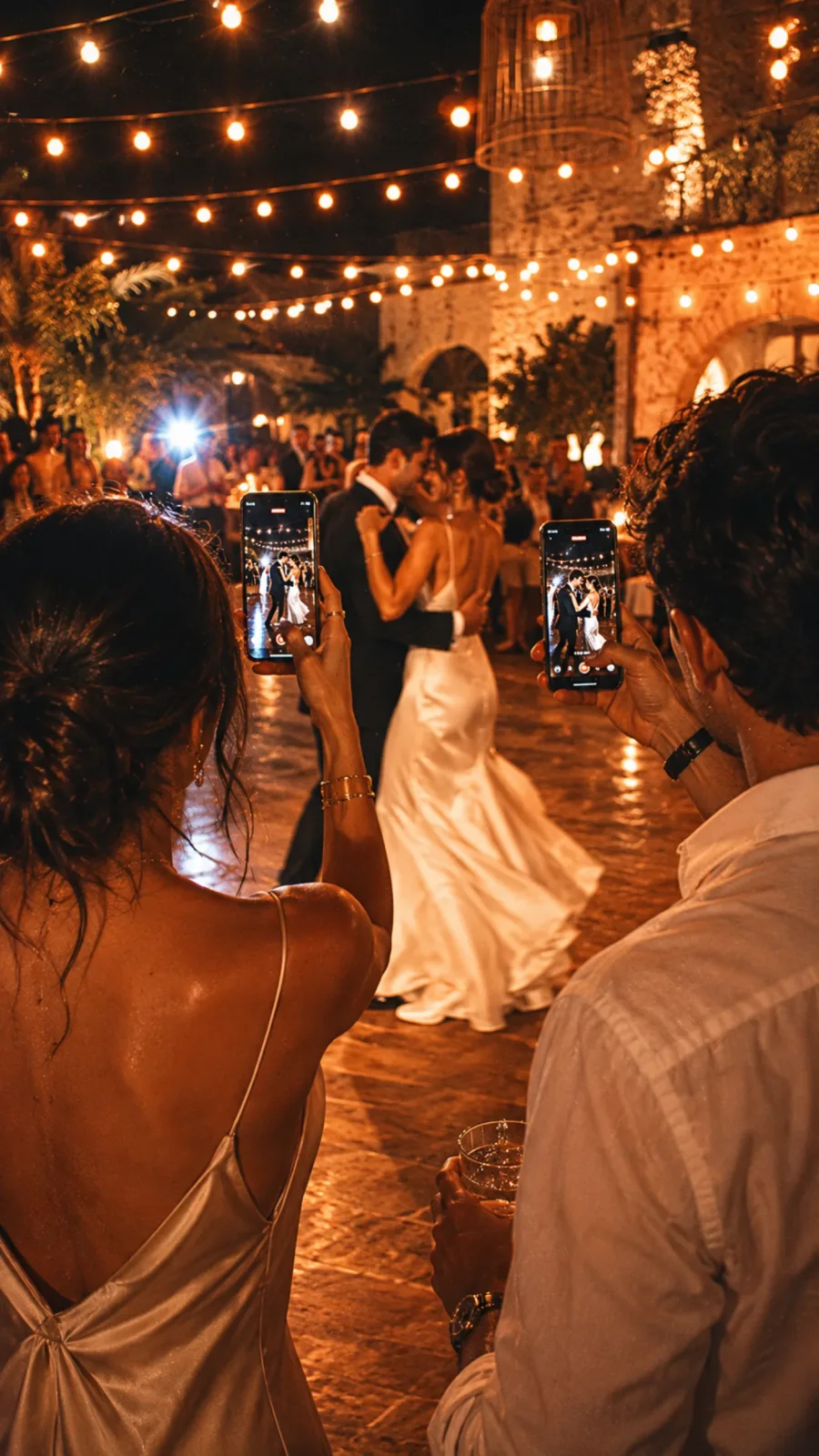
A QR code is the easiest way for your guests to share their photos: they scan it with their phone camera and they're in, without downloading anything or typing any address. Here's how to make one, two ways: the free, manual method with Google Photos, and the automatic one with an app that generates it for you (and does something more).
What it is and why it works so well at a party
A QR code is, simply, a link in the form of an image. Your guests point their phone camera at it and it opens on its own: no typing, no searching, no being in any group. That's why it works so well at an event, where you have thirty seconds of each guest's attention and a QR uses all of them.
Option 1: do it yourself with Google Photos (free)
If you don't want to spend anything, you can set it up by hand in a few minutes:
- Create a shared album in Google Photos.
- Turn on the sharing option and allow other people to upload photos.
- Copy the album link.
- Paste it into a free QR generator (Canva has one, and there are many online).
- Download the QR, print it, and put it on the tables.
It works and it's free. The problem is the friction: in the middle of the party, the guest has to open the link, understand Google Photos, and upload their photos by hand, and almost nobody does it. You usually end up with a handful of photos. We compare this and other methods in this article.
Option 2: an app that generates the QR for you (and opens a camera)
There are apps that give you the QR ready-made. The difference is in what happens when you scan it: instead of opening a folder to upload photos, it opens a camera. The guest scans and starts taking photos right there, in the moment.
That's how lume works: each guest gets a limited roll of photos, and the album is revealed at the end of the party. The QR comes ready to print, the photos stay in high quality, and everything ends up in a single album, without anyone having to upload anything afterward. There's a page for weddings and another for quinceañeras.
Tips to make the QR work (whichever method you use)
- Print it large and put it at eye level.
- One per table, and another at the entrance.
- Pair it with a clear phrase: “Scan and share your photos.”
- Test it beforehand with your own phone, to make sure it opens properly.
- Have a plan B: write out the link too, in case someone doesn't know how to scan.
So, which one is right for you?
If you just want a place where some photos land and you don't mind chasing people down, the homemade Google Photos QR is free and does the job. If you want your guests to really take photos —and to make sure none get lost— an app with a QR and a camera does the work for you. See how it works on the weddings or quinceañera page, and the pricing —you start free for up to five guests.
Got a party coming up?
Free for up to 5 guests · no app to download